 MuseumVoice API

Frequently asked questions
Which languages are best for tourist guides?
We support 23 languages including English, Spanish, French, German, Chinese, Japanese, and Arabic. You can choose any voice for any of these languages to match your exhibit's target audience without needing separate voice models or additional setup.
Can one voice speak multiple languages?
Yes, every voice can speak any of the 23 supported languages. You do not need to assign specific voices to specific languages. You can use Aria for English and switch to Aria for French in the same project by simply changing the language parameter.
How do I specify a language in the API?
Include the optional language field in your JSON request body with the ISO code, such as "language": "fr". If omitted, the system guesses the language based on the script. For non-English Latin text, always set this field to ensure correct pronunciation.
What if my text is in a supported language?
The API will generate natural speech for any of the 23 supported languages. Ensure you provide the correct ISO code in the language field, especially for non-English Latin scripts. The system handles the synthesis engine automatically based on your input text and parameters.
Does the API support non-Latin scripts?
Yes, we support Chinese, Japanese, Korean, Arabic, Hebrew, Hindi, and Russian. You can send text in these scripts directly. The API processes them natively. Just ensure the language parameter matches the script to avoid incorrect auto-detection or pronunciation errors.
How do I handle mixed-language tours?
Split your tour into segments. Send each segment as a separate API request with the appropriate language code. Join the resulting audio files. This ensures each part is synthesized with the correct voice and language settings for that specific exhibit section.
Is auto-detection accurate for all languages?
Auto-detection works by guessing from the script. Latin text defaults to English, which may cause errors for other Latin-based languages. For non-English Latin text, always set the language field explicitly to ensure accurate pronunciation and avoid misinterpretation of the input text.
Can I change the language mid-sentence?
No, the language is set per request. To change languages mid-sentence, you must split the text into two separate API calls. Generate the audio for each part individually and then join the files. Each request handles one language setting uniformly.
What is the best voice for historical tours?
Orion offers a deep, documentary style. Atlas provides a neutral, news-like tone. Sage is calm and instructional. Choose based on your desired tone. All voices support all 23 languages, so you can maintain consistency across different language versions of the tour.
How do I test audio in a new language?
Use the free trial credit of $0.50. Send a short text request with the target language code. Check the returned audio file. This allows you to verify pronunciation and tone before generating the full tour. Failed requests are free, so you can test safely.
Do I need different keys for each language?
No, one API key works for all 23 languages. You use the same endpoint and authentication method. Simply change the language parameter in your requests. Your billing is based on characters used, regardless of the language, so you can manage all tours with one key.
Can I use the same voice for all languages?
Yes, every voice can speak any of the 23 languages. You can use Aria for English, French, and Spanish simultaneously. This ensures consistent branding across your audioguide. The voice quality adapts to the language automatically without requiring you to select different voice presets.
How do I know if a language is supported?
Check the GET /v1/voices endpoint. It lists all available voices, languages, and formats. Supported languages include Arabic, Chinese, Danish, Dutch, English, Finnish, French, German, Greek, Hebrew, Hindi, Italian, Japanese, Korean, Malay, Norwegian, Polish, Portuguese, Russian, Spanish, Swahili, Swedish, and Turkish. Not supported: Vietnamese, Indonesian, Thai, Ukrainian, Romanian, Czech, Bengali and all others not in the list.
What happens if I miss the language code?
The system guesses the language from the script. Latin text defaults to English. If your text is French but you omit the code, it may be read with an English accent. Always set the language field for non-English Latin text to ensure correct pronunciation.
Understanding language support

The MuseumVoice API supports 23 languages, from Arabic to Turkish, allowing you to serve diverse tourist groups without additional licensing. Each voice can speak any of these languages, ensuring consistent audio quality across your exhibit collection.
You can specify the language explicitly using ISO codes or rely on auto-detection for Latin script, which defaults to English. This flexibility simplifies integration while maintaining clarity for non-English visitors.
23 languages available
Our API supports a wide range of languages including English, Spanish, French, German, Chinese, Japanese, and Arabic. This allows you to create audioguides for international tourists without needing multiple voice providers.
Every voice preset, from Aria to Atlas, can deliver clear speech in any of the 23 supported languages. This ensures a consistent brand voice across all your multilingual exhibits.
- Arabic, Chinese, Danish, Dutch, English, Finnish, French, German, Greek, Hebrew, Hindi, Italian, Japanese, Korean, Malay, Norwegian, Polish, Portuguese, Russian, Spanish, Swahili, Swedish, Turkish
Auto-detection for Latin script
If you do not specify a language, the system guesses it from the script. Latin text defaults to English, which works for many Western European languages but may mispronounce others.
For accurate results with non-English Latin text, always set the language parameter. This prevents the engine from applying English phonetics to words like 'café' or 'naïve'.
Explicit language codes
Use the language field in your request to force a specific language, such as fr for French or ja for Japanese. This ensures precise pronunciation regardless of the script.
Supported codes include ISO 639-1 standards. This method is essential for languages like Arabic or Hebrew, where script-based detection might be ambiguous or incorrect.
Choosing the right voice

Selecting the appropriate voice ensures your audioguide matches the atmosphere of each exhibit, from quiet galleries to lively tour groups. The eight presets cover a range of tones, allowing you to tailor the experience without hiring different voice actors.
Each voice is based on licensed recordings, ensuring natural delivery. You can mix and match voices across languages, as any preset speaks all 23 supported languages fluently.
Matching voice to exhibit tone
Choose voices that align with the emotional context of your content. Use calm, instructional tones for detailed historical explanations or upbeat, energetic voices for interactive exhibits.
The goal is clarity and engagement. A warm narrator works well for stories, while a neutral voice suits factual lists of dates and names.
- Match tone to exhibit type
- Ensure clarity for diverse audiences
- Mix voices for varied content
Female voices like Aria and Nova
Aria offers a warm, clear narration style, ideal for storytelling or historical narratives. Her tone is accessible and engaging for general tourists.
Nova provides a bright, upbeat delivery, perfect for lively exhibits or children’s sections. Her energy keeps listeners engaged during longer walks.
- Aria: warm, clear narrator
- Nova: bright, upbeat
- Ideal for stories or interactive exhibits
Male voices like Atlas and Felix
Atlas delivers a neutral, news-style voice, suitable for factual information, timelines, or straightforward descriptions. His tone is professional and unobtrusive.
Felix is energetic and promo-oriented, great for promotional videos or exciting highlights. His voice adds dynamism to special features or announcements.
- Atlas: neutral, news style
- Felix: energetic, promo
- Best for facts or dynamic content
Preparing your exhibit text

Exhibit labels and descriptions often exceed the API’s 4096-character limit per request. Preparing your text in advance ensures smooth audio generation without unexpected truncations or errors during the synthesis process.
Long narratives, such as detailed historical accounts, should be split into logical segments before sending them to the API. This approach maintains audio continuity and allows for efficient processing of each part.
Keeping text under 4096 characters
Ensure each text segment sent to the API does not exceed 4096 characters, including spaces and punctuation. This limit applies to every individual request, so careful text management is essential for accurate audio output.
Exceeding this limit may result in truncated audio or processing errors. Always verify the character count of your exhibit text before submitting it for synthesis to maintain quality and consistency in the final audioguide.
- Count spaces and punctuation as characters.
- Test text length before API submission.
- Avoid exceeding 4096 characters per request.
Splitting long narratives
Break down lengthy exhibit descriptions into smaller, coherent segments. Each segment should represent a complete thought or idea, ensuring that the resulting audio segments flow naturally when joined together.
Use logical breaks such as paragraph endings or natural pauses in the text to facilitate seamless audio joining. This method helps maintain the narrative flow and enhances the listener's experience in the audioguide.
- Split text at logical breaks.
- Ensure each segment is coherent.
- Join segments for seamless playback.
Handling special characters
Special characters, such as accents, diacritics, and symbols, should be properly encoded in UTF-8 format before sending them to the API. This ensures that the text is correctly interpreted and synthesized into audio without errors.
Avoid using complex formatting or non-standard characters that may not be supported by the TTS engine. Stick to standard Unicode characters to maintain compatibility and ensure accurate pronunciation in the generated audio.
- Use UTF-8 encoding.
- Stick to standard Unicode characters.
- Avoid complex formatting.
Sending the API request

Generating audio starts with a simple POST request to the speech endpoint. You provide the text, select a voice, and specify the desired language. The API handles the synthesis and returns the audio file directly in the response.
For museum audioguides, precise language control ensures accurate pronunciation across diverse tourist demographics. The request structure mirrors standard TTS APIs, making it easy to integrate into existing backend workflows without learning a new system.
Setting the language parameter
Explicitly set the language field using ISO codes to ensure correct pronunciation, especially for Latin-script texts that might otherwise default to English. This prevents the API from guessing incorrectly for languages like Dutch or Norwegian.
If omitted, the system attempts auto-detection based on the script. For non-English Latin text, always specify the language to avoid unintended English output.
- Use ISO codes (e.g.,
fr,de,ja) for clarity. - Auto-detection defaults to English for Latin script.
- Supported: 23 languages including Arabic, Hindi, and Korean.
Selecting the correct model
Choose between tts-1 for standard quality or tts-1-hd for higher fidelity. Both models use the same engine and pricing, so the decision depends on your audio quality requirements versus processing time.
The API processes requests sequentially, so longer texts may take time. However, the engine handles character limits automatically when you split content.
tts-1: Standard quality, faster processing.tts-1-hd: High definition, slightly longer generation.- Same price: $0.01 per 1,000 characters.
Defining the output format
Specify the response_format to match your deployment needs. MP3 is ideal for web playback due to its small size and broad compatibility. WAV or FLAC offers lossless quality for high-end audio kiosks.
PCM provides raw audio data, while Opus offers efficient compression. The API returns the binary audio file directly, which you can save or stream to your users immediately.
- MP3: Best for web and mobile apps.
- WAV/FLAC: Lossless quality for kiosks.
- Opus: Efficient compression for bandwidth-limited areas.
- PCM: Raw audio data for custom processing.
Processing the audio response

The API returns the generated audio directly in the response body, allowing you to save the file immediately. If the input text exceeds 4096 characters, the system automatically splits the request into multiple parts. Each part generates a separate audio segment, which you must manage to reconstruct the full audioguide experience for your users.
Handling multipart audio ensures that long exhibit descriptions are not truncated. You receive a sequence of audio files corresponding to each text segment. These segments need to be joined seamlessly to maintain the narrative flow for museum visitors listening to the guide.
Receiving the audio file
The API returns the audio file directly in the response body. Supported formats include MP3, WAV, OPUS, FLAC, and PCM. You can save this file locally for playback in your museum app.
Ensure your application handles the binary response correctly. The file contains an inaudible watermark marking it as synthetic speech, which identifies the content as AI-generated without affecting the listening experience.
- Supported formats: mp3, wav, opus, flac, pcm
- Audio contains an inaudible synthetic watermark
- Response includes request metadata for billing
Handling multipart audio
For texts longer than 4096 characters, the system splits the input and generates multiple audio segments. You receive a list of audio files corresponding to each part. This allows you to manage large exhibit descriptions without losing quality.
Each segment is generated sequentially. Under load, requests may wait in a queue, so implement retry logic to handle temporary delays. Ensure your application tracks which segment belongs to which part of the text.
- Automatic splitting for texts >4096 characters
- Sequential processing under load
- Track segment order for reconstruction
Joining audio segments
Combine the returned audio segments in the correct order to form a continuous audioguide track. Use standard audio libraries to concatenate the files. Ensure there are no gaps or overlaps between segments to maintain a smooth listening experience.
Test the joined audio to verify that the transition between segments is seamless. Adjust speed settings if necessary to maintain consistent pacing across all parts of the exhibit text.
- Concatenate segments in order
- Use standard audio libraries
- Verify seamless transitions
Testing with different languages

Testing ensures your audioguide sounds natural across all 23 supported languages. While the API auto-detects Latin-script text, explicitly setting the language parameter prevents misidentification for non-English languages like Dutch or Greek. This step is critical before deploying to visitors.
Use the sample voices to verify tone and clarity. Adjusting speed helps accommodate different listener needs, from quick glances to deep listening sessions. Always check the final output format matches your app’s requirements.
Verifying pronunciation accuracy
Send sample exhibit text via the API with the language parameter set to the target ISO code. Listen to the output to confirm accurate pronunciation of proper nouns and local terms. If the language isn't explicitly set, Latin text defaults to English, which may cause errors for other languages.
- Set the
languagefield explicitly for non-English Latin texts. - Test proper nouns and local landmarks for clarity.
- Verify non-Latin scripts like Arabic or Hindi are detected correctly.
Adjusting speed settings
The API allows speed adjustments from 0.25 to 4.0. For museum audioguides, a speed between 1.0 and 1.5 often provides the best balance of clarity and engagement. Faster speeds may reduce listening time but can impact comprehension for complex historical details.
Use the speed parameter in your request to fine-tune the output. Test different speeds with native speakers to ensure the tone remains natural and not rushed.
- Set speed between 0.25 and 4.0.
- Recommend 1.0–1.5 for general exhibits.
- Test for clarity with elderly or non-native listeners.
Checking audio quality
Review the generated audio for artifacts or clipping. The API returns high-quality MP3, WAV, or Opus files. Ensure the output format matches your device’s playback capabilities. Remember that all files include an inaudible watermark identifying them as synthetic speech.
Check the volume and pacing. If the text is dense, consider splitting it into smaller segments for better listener retention. Use the response_format parameter to optimize file size vs. quality.
- Verify output format matches device requirements.
- Check for audio artifacts or clipping.
- Confirm watermark is present but unobtrusive.
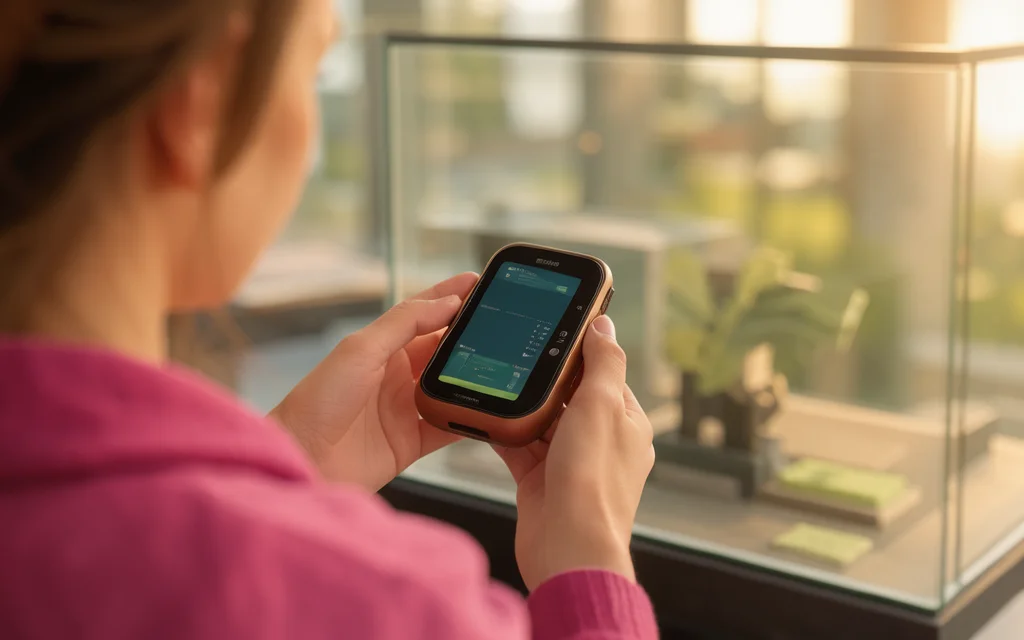
Deploying to your museum app

Once your audioguide audio files are generated, the next step is integrating them into your museum’s digital infrastructure. Since the API returns standard audio formats like MP3 or WAV, you can embed these directly into your existing web applications or mobile apps without needing a proprietary player or SDK.
This flexibility allows you to leverage your current tech stack, ensuring that tourists can access the content on any device they prefer, whether it’s a smartphone browser or a dedicated in-house kiosk.
Integrating with your website
Embed the audio files using standard HTML5 <audio> tags or link them from your exhibit database. Because the output is a standard file, you can host the audio on your own CDN or static storage, reducing dependency on the API during peak tourist hours.
- Use standard HTML5 audio elements for easy web integration
- Store generated files on your preferred CDN or object storage
- Link audio assets directly from your exhibit content management system
Loading audio on demand
Implement lazy loading to fetch audio files only when a visitor selects a specific exhibit. This approach conserves bandwidth and improves the initial page load speed, ensuring a smooth experience even for users on slower mobile networks.
- Fetch audio files only when a user interacts with an exhibit
- Preload short introductions while deferring longer narrative segments
- Cache audio assets locally on the device to reduce repeated requests
Managing user languages
Allow visitors to select their preferred language via a dropdown or geo-based default. Since each language requires a separate audio file, ensure your application maps the user’s choice to the correct file URL or triggers a new API call if on-demand generation is preferred.
- Provide a clear language selector for visitors
- Default to the user’s browser language or detected location
- Map each language selection to the corresponding audio file URL
Common language-specific issues

Language handling in museum audioguides requires attention to script detection and voice compatibility. While the API automatically infers language from Latin script text, non-Latin scripts like Greek, Hebrew, or Arabic require explicit language codes to ensure accurate pronunciation. This prevents misinterpretation of characters and ensures the correct voice model is applied.
Voice compatibility is universal across all 23 supported languages, meaning any preset voice can speak any supported language. However, subtle dialectal nuances may vary. Explicitly setting the language parameter for non-English Latin texts ensures consistent results, avoiding default English inference for mixed-language exhibit labels.
Non-Latin script detection
The API guesses language from script for Latin text (defaulting to English), but non-Latin scripts like Arabic, Hebrew, or Cyrillic require you to explicitly set the language field. Without this, the engine may default to English pronunciation rules, causing mispronunciation of exhibit names or historical terms.
For languages like Greek, Hindi, or Russian, always provide the ISO code. This ensures the synthesis engine applies the correct phonetic rules, maintaining the natural flow expected in museum audio guides.
- Set
languagefor Greek, Hebrew, Arabic, and Cyrillic scripts. - Default English inference applies only to Latin script if no language is specified.
- Explicit codes prevent mispronunciation of proper nouns and exhibit titles.
Accents and dialects
All eight voices support all 23 languages natively. There are no separate voice models for regional dialects (e.g., Mexican vs. Spanish Spanish). The same voice model handles all regional variations, ensuring consistent tone across different linguistic regions.
This uniformity simplifies your content strategy, as you can use a single voice preset for a language across multiple exhibits, regardless of regional variations. Adjust speed and pitch if specific clarity is needed for local dialects.
- All voices support all 23 languages without dialect-specific models.
- No separate voices for regional variations like French Canadian or Brazilian Portuguese.
- Consistent tone across regions using the same voice preset.
Voice compatibility checks
Every voice preset—Aria, Nova, Luna, Sage, Felix, Milo, Atlas, Orion—can speak any of the 23 supported languages. There are no language restrictions per voice, allowing flexible casting for different exhibit tones.
Verify that your chosen voice matches the desired tone for each language. For example, Atlas provides a neutral news tone suitable for historical facts in any language, while Luna’s soft storytelling works well for narrative exhibits in French or German.
- All 8 voices work with all 23 languages.
- No voice is restricted to specific languages.
- Test voice-tone pairing across multiple languages for consistency.
Optimizing for tourist experience

Optimizing for tourist experience requires balancing clarity with natural pacing. Adjust the speed parameter between 0.25 and 4.0 to suit different audio contexts. Slower speeds aid comprehension for complex historical facts, while faster rates keep casual listeners engaged without sacrificing intelligibility.
Choose output formats that match your delivery device. MP3 offers broad compatibility for web players, while WAV or FLAC provides higher fidelity for dedicated audioguide hardware. Ensure your app handles these formats seamlessly to minimize buffering and playback errors.
Speed adjustments for clarity
Set speed values between 0.25 and 4.0 to tailor the listening experience. Use lower speeds (0.5–0.75) for dense historical narratives or foreign language exhibits to aid understanding. Higher speeds (1.5–2.0) work well for brief directional cues or casual summaries.
Remember that requests are processed sequentially, so under load, synthesis may queue. Test speed variations with actual exhibit texts to ensure natural rhythm is maintained across all 23 supported languages, including non-Latin scripts like Arabic or Japanese.
Format choice for devices
Select the response_format parameter based on your deployment target. MP3 is ideal for web-based audioguides due to its small file size and universal support. WAV or FLAC suits high-quality dedicated devices where storage is less constrained.
Opus and PCM are also available for specific use cases. Ensure your museum app or hardware player supports the chosen format to avoid playback issues. All generated files are returned directly in the API response for immediate use.
Watermark identification
Every generated audio file contains an inaudible watermark marking it as synthetic speech. This helps identify AI-generated content without affecting the listening experience. Tourists will hear natural-sounding narration without any audible artifacts from the watermark.
Use this feature to distinguish between staff-recorded and API-generated audio in your museum’s archive. The watermark is transparent and does not impact audio quality or playback performance on any supported device.
Troubleshooting audio generation

When audio generation fails, start by verifying your request structure. Ensure the JSON body is valid and all required fields like model and input are present. Missing or malformed fields are common causes of immediate rejection.
Next, confirm your API key is active and correctly formatted in the Authorization header. Remember that issuing a new key invalidates the old one immediately, so update your configurations promptly to avoid service interruptions.
Checking for syntax errors
Ensure your JSON payload is strictly valid. Missing commas or incorrect string escaping in your exhibit text can cause silent failures or malformed audio responses. Double-check that special characters are properly encoded.
- Validate JSON structure before sending.
- Check for unescaped quotes in text.
- Verify required fields are present.
Verifying API keys
Confirm your key starts with tts- and is attached via the Authorization: Bearer header. If you generated a new key, the previous one stopped instantly. Ensure your code references the current active key.
- Key must start with 'tts-'.
- Use 'Bearer' prefix in header.
- New key invalidates old immediately.
Monitoring rate limits
You are limited to 60 requests per minute per key. If you exceed this, requests will queue or fail. Monitor your usage dashboard to stay within limits, especially during peak tourist hours or bulk generation tasks.
- Limit: 60 requests/minute.
- Queue under load.
- Check dashboard for usage.
Future-proofing your content

Your audio guide library grows as your museum expands, but you aren't locked into a fixed language set. Because the API supports 23 languages with any voice, adding a new language is just a parameter change in your request, not a new recording session.
This flexibility ensures your content remains relevant without costly re-production cycles or vendor lock-in.
Adding new languages easily ['To support new languages, simply specify the ISO code in the language field. Since any voice can speak any supported language, you can deploy the same audio infrastructure for Arabic, Korean, or Swahili without changing your voice presets.', 'You do not need to train new models or wait for custom voice creation. The existing 8 presets handle the full range of 23 languages immediately.', 'The API guesses language from script for Latin text, but explicit codes ensure accuracy for non-Latin scripts like Cyrillic or CJK.', None] ['Specify language ISO code in the JSON body.', 'No new voice models required for any of the 23 supported languages.', 'Automatic script detection works for Latin text; explicit codes recommended otherwise.']
Updating text without re-recording ['Exhibit descriptions often change due to new research or seasonal rotations. With this API, you update the text string and generate fresh audio instantly.', 'There is no need to re-record studio sessions or manage legacy audio files. The input text is used only for generation and not stored for training, keeping your data lean.', 'You can regenerate audio for specific exhibits while keeping the rest of your library intact.', None] ['Replace input text and send a new POST request.', 'Old audio files are not stored by the API, reducing storage overhead.', 'Instant regeneration ensures your audioguide always reflects current exhibit information.']
Scaling to more exhibits ['As you add more exhibits, you can batch requests or process them sequentially. The API handles up to 4096 characters per request, allowing detailed descriptions without immediate splitting.', 'For longer narratives, split the text into parts, generate each segment, and join the audio files. This keeps each request within limits while maintaining a continuous listening experience.', 'With 60 requests per minute, you can efficiently build large libraries during off-peak hours or via automated scripts.', None] ['Split texts exceeding 4096 characters into sequential segments.', 'Join generated audio segments for continuous playback.', 'Leverage 60 requests/minute limit for bulk generation tasks.']
Listen to the 8 voices
Each sample below was generated by this API from the same sentence. This voice is less about delivering facts and more about creating an atmosphere.


23 languages
Any voice speaks any of these languages.
